

(Updated August, 2026)
If you intend to build out a WordPress website complete with a course, using the LearnDash LMS plugin is a popular choice and for good reason. It’s robust and affordable.
Because Spotlightr is listed in the LearnDash documentation as a supported video host for their video progression feature, we’ve put together this full tutorial and informational guide on using Spotlightr with LearnDash. LearnDash does provide some instruction on their support page, but it is nowhere near as complete as it can be if you decide to choose Spotlightr as your video hosting provider.
Spotlightr provides security, branding and marketing feature not available with any other video hosting provider. Reviewing this article is a good way decide if Spotlightr is right for you. This piece also includes information on using our WordPress plugin in conjunction with your LearnDash set-up.
LearnDash Course Overview
Before we get into this important LearnDash feature, let’s touch on the LearnDash architecture for just a moment in case you aren’t familiar with it.
In LearnDash you create courses which contain lessons, topics, and quizzes. Lessons are what create the bulk of the course and are the heart of LearnDash, while topics and quizzes are optional.
Within a lesson you can add various learning materials such as videos, text, PDFs, audio, etc. The vast majority of online learning is done via video, so of course LearnDash is going to put video at the forefront of it’s learning methods. You can add one or more videos to every lesson you add to LearnDash.
Creating a lesson inside of WordPress is like creating any other WordPress post, except you have additional LearnDash features. To add video to your lesson. Adding video is the same. You can add video into the lesson post like adding video to any WordPress post, or alternatively you can use their video progression feature.
Should You Use LearnDash Video Progression?
Video progression means that students must watch the entirety of a video before they are able to click ahead to the next lesson. This encourages students to watch the whole video, so they don’t just click through to the next lesson without watching anything.
If you feel the need to encourage your students to watch the video material, as opposed to just marking the Lesson complete without having watched anything, then you can take advantage of this feature.
One thing to keep in mind: your student can simply scan the video forward till a few seconds before the video ends and just watch the last few seconds. This will in essence “cheat” this Video Progression feature. However, there is a way to mitigate that which we will show below.
What Are The Drawbacks?
There are a few:
– It could be frustrating for some students if you require them to watch an entire video before moving on if they are very familiar with the material already.
– We’ve also found that video progression overall can possibly cause random issue with your video player features or functionality due to conflicts with other plugins or even LearnDash bugs or errors. It’s rare, but it happens.
How Do I Set Up Video Progression with Spotlightr?
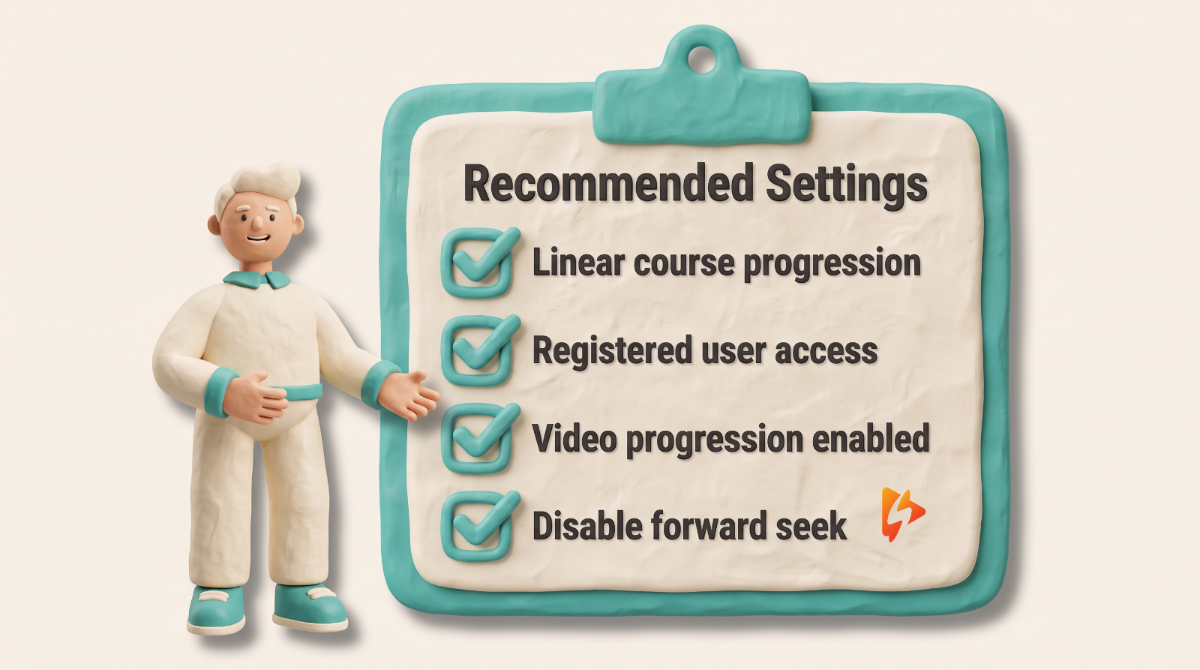
– Course linear progression: when you set up your LearnDash course, you have the option to first set your course to linear or ‘free form’ for its navigation. You’ll need to choose linear. Using this feature requires that students must progress through each lesson/topic/quiz one at a time in the order they presented and cannot skip around. The other option is “free form” which means students can skip around to any lesson or topics they want throughout the entire course. Setting is as either “free torm” or “linear” is done in the COURSE options.
– Course access: These features only work for logged-in users. So if your course access is set to open, meaning there is no registration to access, then they can’t be tracked and progression won’t work. So when you set your course access, linear and video progression will work with any mode except open.
– Enable video progression: when you are configuring your lesson, you just need to go to the settings tab and you will see the video progression option. It’s turned off by default, so just enable it.
Video Progression With Spotlightr
First install our free WordPress plugin. It’s straight-forward and easy to use. For full instructions and step-by-step tutorial with up-to-date screen shots check our help doc on it.
Here are the main set-up steps:
– Enable the video progression on your lesson
– You’ll see the option to use a Spotlightr video. Just click on the button to select your video. Then click publish. That’s it!
Video Progression Settings: What to Set, and Where
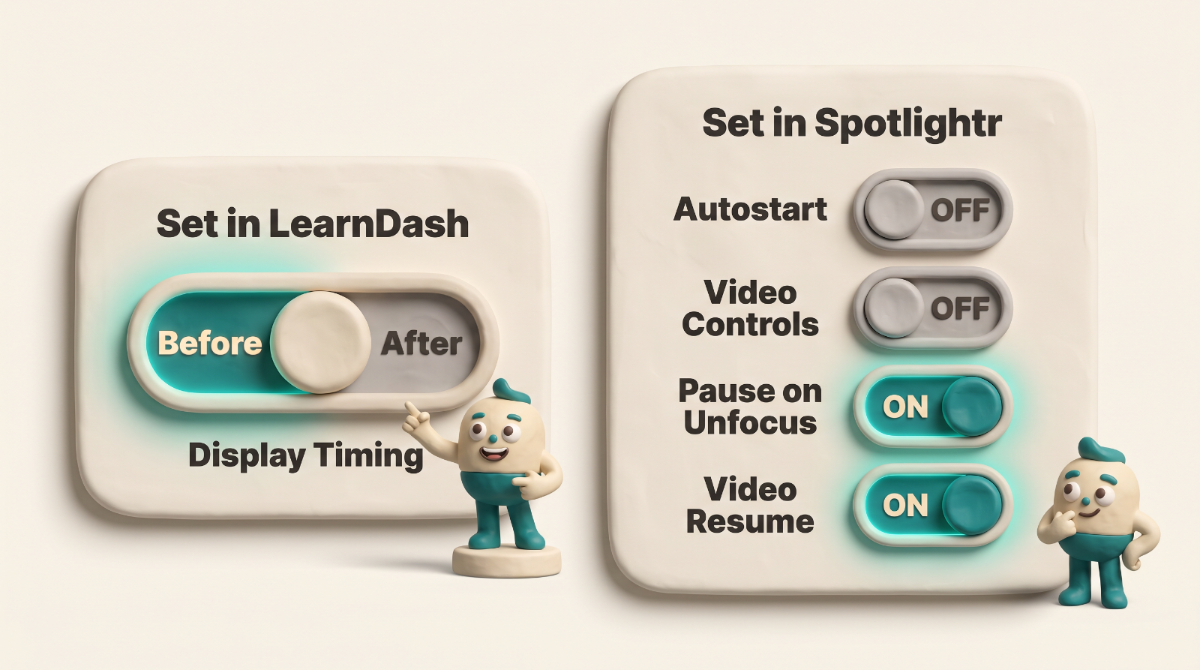
LearnDash gives you five toggles for video progression. In practice only one of them belongs here — the other four are better configured in Spotlightr, where they apply to every video in a project instead of being set one lesson at a time.
Display timing. This is one to set in LearnDash. The default is set to ‘Before completed sub-steps’ — Keeping it there shows the video immediately and requires the student to finish the video before they can reach the lesson’s topics or quizzes.
Setting to ‘After completing sub-steps’ hides the video until that other work is done, though the student still has to watch the video to complete the lesson.
Most courses want the video first, so most people leave the default alone. It’s a question about how your course is structured, not about video.
The other four we’d handle on our side:
Autostart. We don’t recommend autoplaying course videos at all. If you need it, set it in Spotlightr rather than LearnDash — browsers force autoplayed video to start muted, and there’s an unmute button the student has to click. By then they’ve missed the opening seconds. Spotlightr restarts the video from the beginning when they unmute, which LearnDash can’t do.
Video controls display. This exists only to bring back the controls that LearnDash hides when its own autostart is on. So if you have autostart disabled in LearnDash, you don’t need to worry about this setting. Just leave it off.
If you want to hide the video controls, even with autoplay turned off, we recommend you configure this setting in Spotlightr.
Worth noting: LearnDash’s documentation says this setting only affects YouTube and locally hosted video — in our testing it affects Spotlightr videos too.
Pause when the window loses focus. Keeps students from half-watching while they scroll or switch tabs. We call it SMART playback, and it can pause on scroll, on tab change, or both. This can be effective, set in Spotlightr if you want it.
Video resume. Picks up where the student left off. Again, set this in Spotlightr if it’s what you want.
Long story short: LearnDash is not a video hosting company. Leave the video player manipulation to Spotlightr.
→ Full setup steps, with current screenshots: Spotlightr on LearnDash
Spotlightr Video Progression Recommended Settings
LearnDash is contantly updating it’s plugin and this can affect the way it interacts with our player. If you have any issues then contact our helpdesk and we will help.
The goal of any coach or teacher is for their students to learn the information provided and complete their lessons. This is why we do recommend you use the Video Progression feature of LearnDash.
However we recommend you leave all LearnDash video options (Autostart, Video Controls Display, Video Paused on Window Unfocused, Video Resume) turned OFF. Keeping these off results in less conflicts with the Spotlightr player.
If you want to enable any of these features, follow our instructions above for each feature on enabling them inside of Spotlightr.
If you want a quick, easy and extremely effective set up here is what we recommend for all videos:
1 – Add your videos to your lessons in the Video Progression options using the Spotlightr plugin
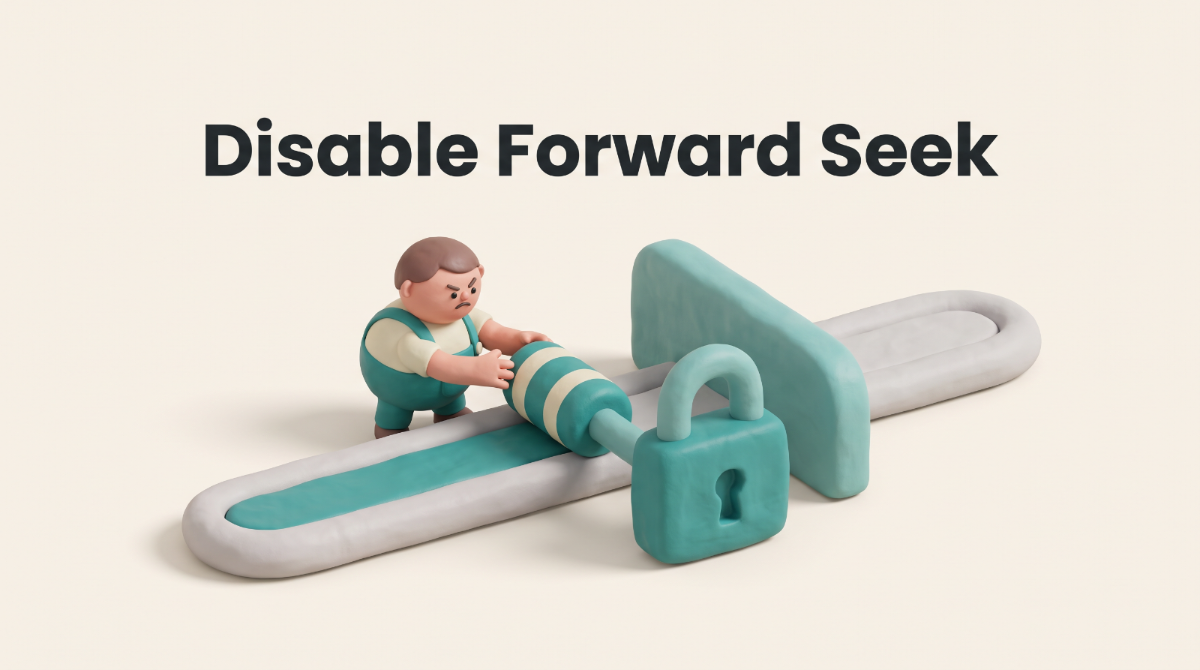
2 – Enable “Disable Forward Seek” inside of your Spotlightr theme.
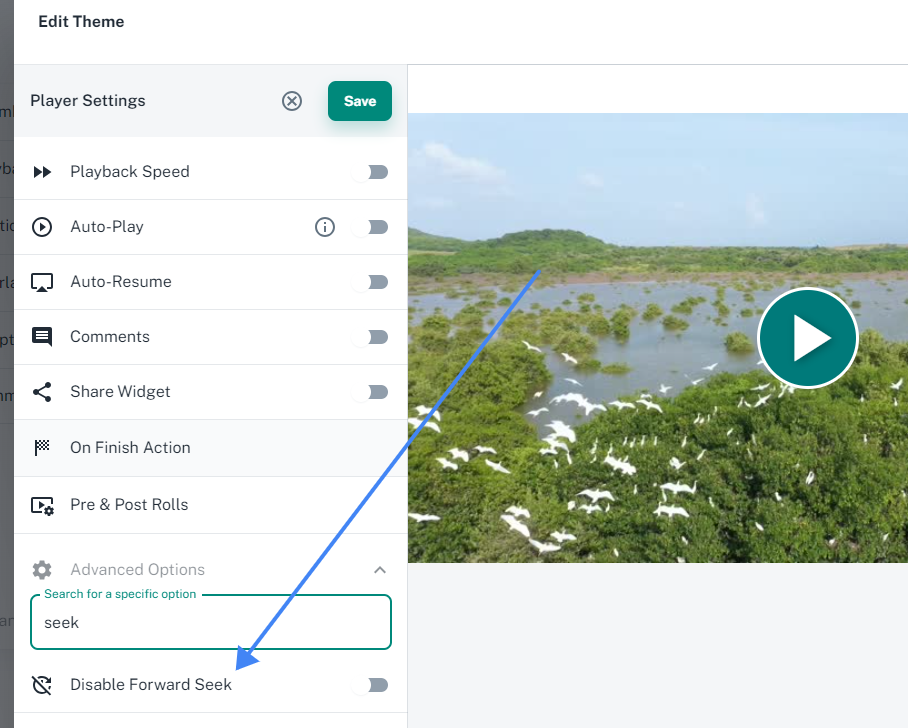
That’s it!
This will display the controls and timeline to your students so they know where in the video there are, how long the video is going to last, and can rewind to re-watch anything they might have missed or need to watch again.
This will also prevent them from fast-forwarding to the end so they can quickly mark the lesson complete.
You are of course welcome to also include the features explained above. However if you disable forward seek there is no reason to hide the controls. If you hide the controls students cannot go back to rewatch something. But if you disable forward seek, they can go back to rewatch but they can’t skip ahead.
Pausing the video when not focused or auto-resume may be something you want to add as well.
What’s Next?
Set up your video lessons with Spotlightr to see if it’s for you. It’s free to test so you have nothing to risk.
1 – Sign up for a free 14-day trial with Spotlightr, no credit card required.
2 – Download our free WordPress plugin and install it in your WordPress.
3 – Check our full set up documentation.
Support agents are ready to help with anything in our live chat from your dashboard.
Spotlightr Video Hosting for LearnDash
Spotlightr gives you fast, encrypted video hosting on your own site, with the security and analytics WordPress can’t provide on its own
Try Spotlightr for 14 days, risk-free. No credit card required.

Bill is the founder of Spotlightr, a video platform used by course creators, membership sites and marketers who need their video hosted properly rather than uploaded somewhere and hoped for. He writes about instructional video from the inside — what creators actually publish, where students actually stop watching, and what the platforms in this category actually charge. He’s currently building Spotlightr Courses, a course product built around the video rather than bolted on top of it.