

If you sell online courses, run a membership site, or host paid video lessons on WordPress, you already know that your content is your product. The moment someone can download videos and redistribute them, your revenue takes a hit. This tutorial walks through practical ways to prevent video download in WordPress, from quick UI fixes to DRM with Spotlightr, so you can protect your intellectual property at every layer.
Why You Can’t Fully Block Video Downloads (But You Can Greatly Reduce Them)
No WordPress setup can 100% block video downloads or screen recording. Even enterprise-grade DRM systems can be defeated by someone pointing a phone camera at a monitor. That said, the threat model matters.
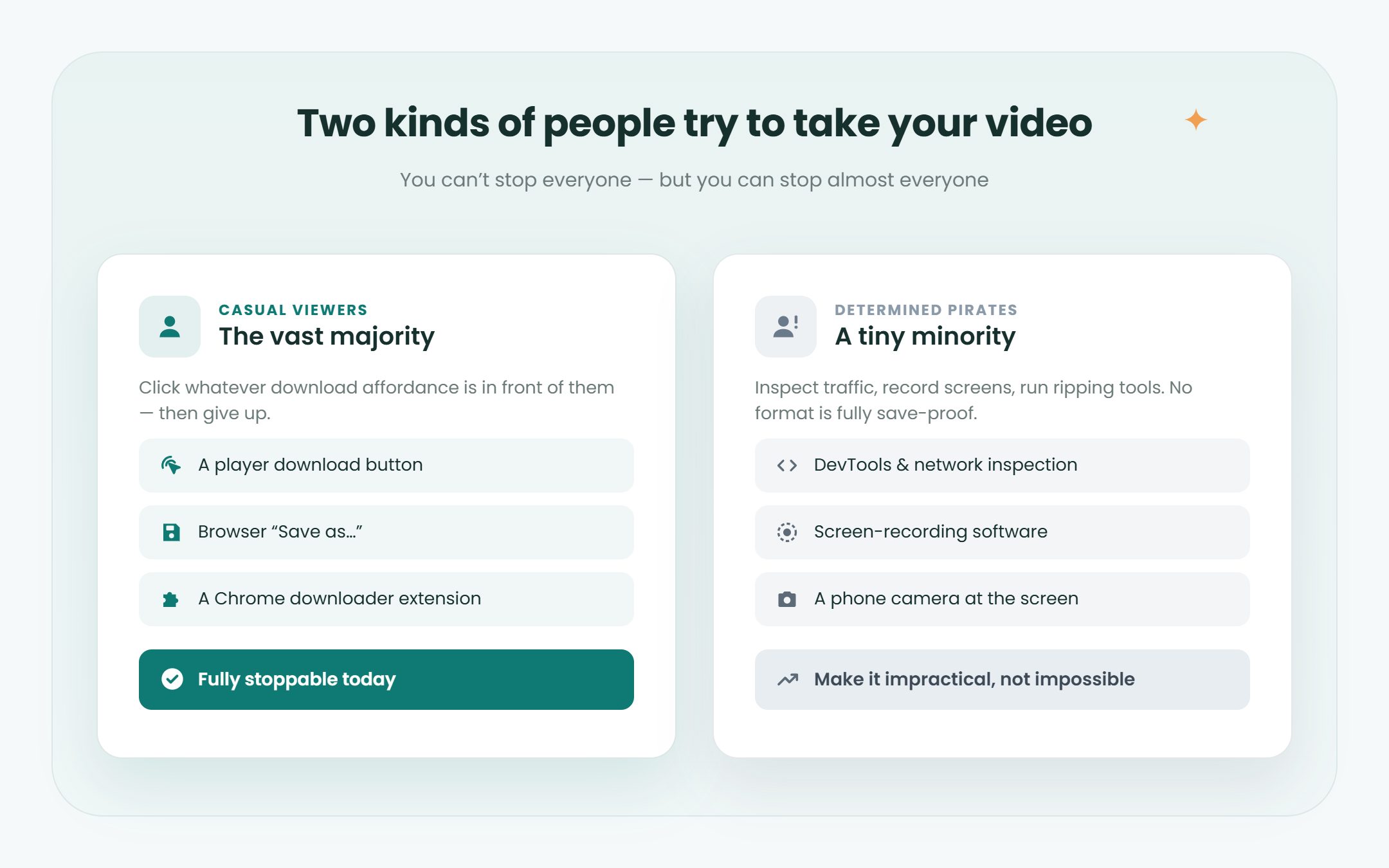
There are two types of users you need to worry about:
– Casual users who click a download button, use the browser’s “Save as” function, or try a Google Chrome extension.
– Determined pirates who inspect network traffic with developer tools, use screen recording software, or rip streams with specialized apps.
The goal is not perfection. It is to block easy video downloads, protect videos enough to deter the vast majority, and log suspicious activity. According to a 2025 OTT industry report, 54% of streaming providers had lost revenue to piracy before adopting stronger protections. For course creators who launched paid video lessons between 2024 and 2026, that number should set off alarms.
This article covers practical methods – from hiding the download option in your player to using Spotlightr’s DRM video hosting – so you can build a real defense. Not on WordPress? The same steps work on any platform: see how to prevent video downloads.
Quick Wins: Remove the Download Button From WordPress Video Players
The easiest first step to block video downloads is hiding the obvious “download videos” affordance from your player controls. Most default WordPress players allow users to right-click and download videos directly, which is a problem when you are serving premium content.
Chrome adds a default download button inside its three dots menu for any HTML5 video tag. Firefox and Safari typically do not display one, but the media file URL is still accessible in the page source.
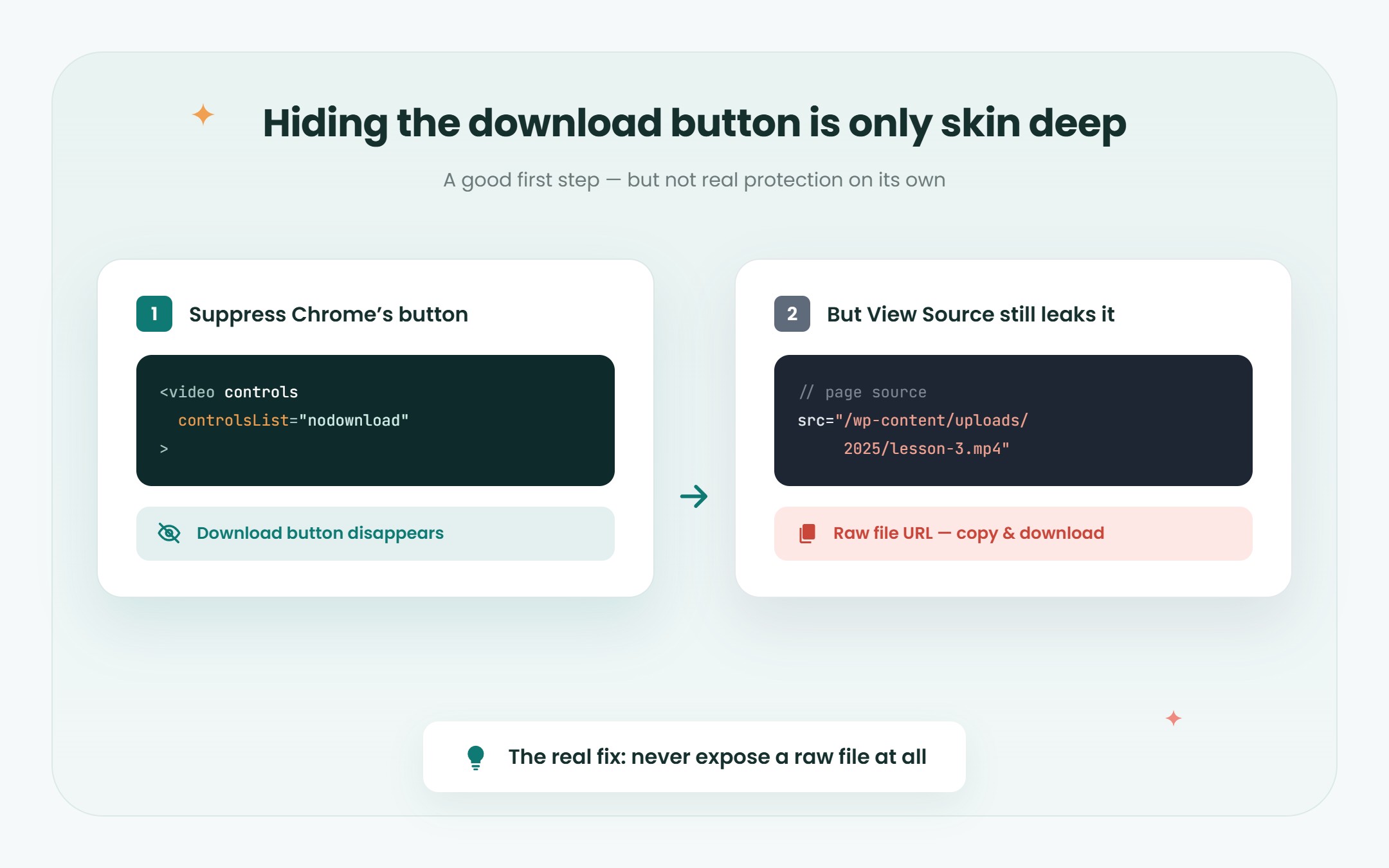
You can use the controlsList=”nodownload” attribute on <video> tags to suppress Chrome’s built-in download button. The controlList attribute can hide download buttons in Chrome, and specifically the nodownload value prevents downloads in Chrome’s video tag.
To apply this in WordPress, switch the Gutenberg Video block to html mode and add the attribute manually to the video tag markup. For example:
<video controls controlsList="nodownload" src="your-video-url.mp4"></video>
The downside: Gutenberg may strip the attribute when you switch back to visual edit, making this fragile for non-technical editors. And critically, hiding download buttons does not prevent video downloads entirely. Anyone who opens View Source or DevTools can still grab the raw video file URL. Removing download buttons can reduce unauthorized access, but it is only a surface-level fix.
Automating Button Removal With a Small WordPress Plugin Snippet
Manually editing each embed is tedious if your site has dozens of lessons. Using plugins can help remove video download buttons at scale.
Developers can write a small plugin or functions.php code snippet that hooks into render_block and uses str_replace to inject controlsList=”nodownload” into every core/video block’s <video> markup. The function checks if the block is a video block, finds the opening <video tag, and appends the attribute before rendering the page. The method returns the modified html, and for blocks that don’t match, it can return false to the modification and pass through unchanged content.
Installing plugins can hide the download button and disable user access to the source file at the UI level. Plugins like WPShield can disable download options for videos and even disable right click on media elements. If you are using a child theme, placing the snippet there keeps it safe from theme updates – just make sure you are running the latest version of WordPress.
Edge cases exist: videos that already use controlsList, or themes with custom players, may need more precise string replacement or regex. And client-side methods do not completely stop tech-savvy users from downloading videos. This is a display fix, not a security fix.
Why Self‑Hosting Big Video Files in WordPress Is a Security & Performance Risk
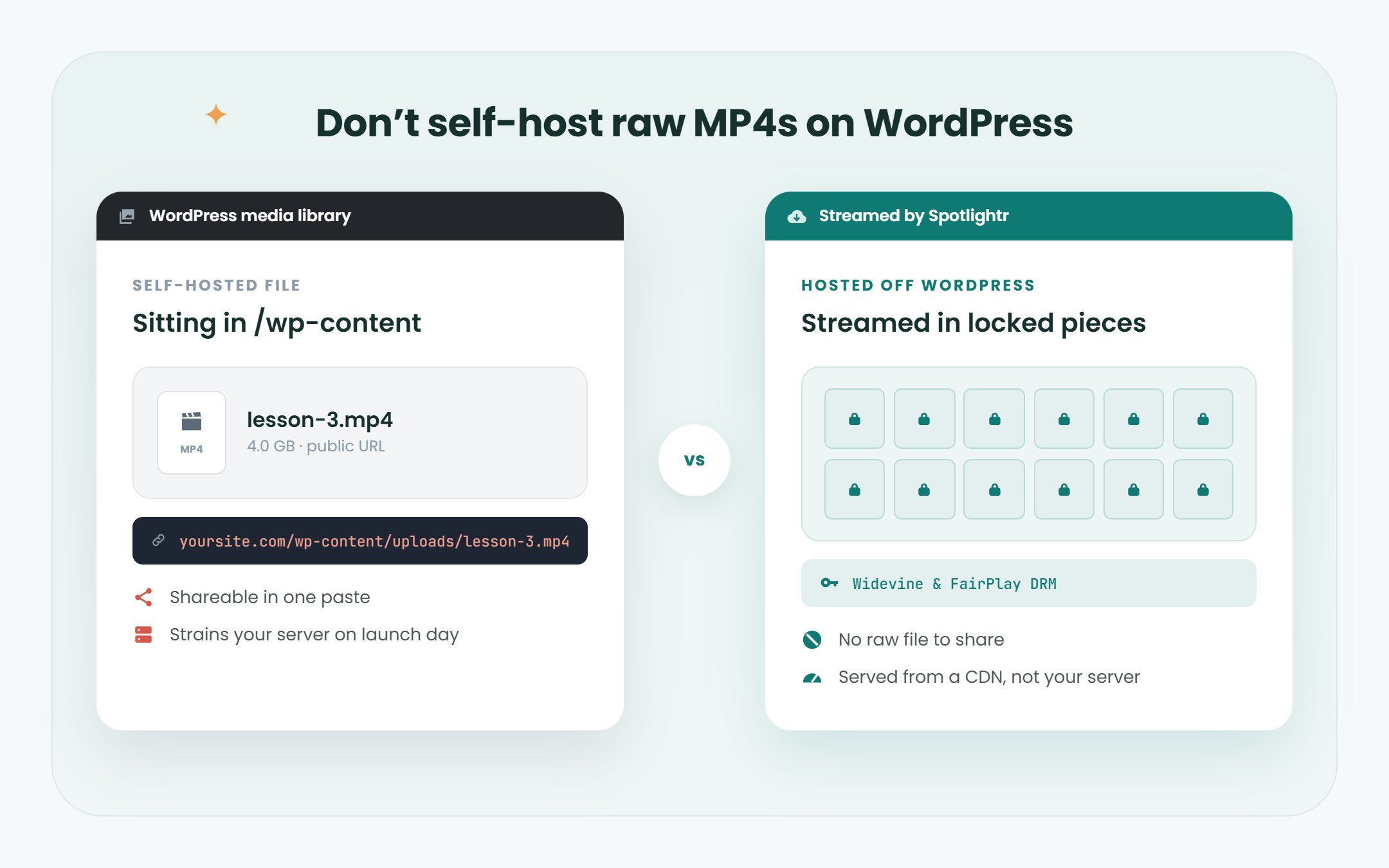
Uploading large MP4 video files directly to the WordPress media library makes them trivial to download and puts serious strain on your server. Every visitor streaming a large media file consumes PHP processes, bandwidth, and database resources – enough to crash shared hosting during a course launch.
Direct file URLs from /wp-content/uploads/2025/… are easy to share, mirror, and even get indexed by Google if your server configuration allows directory listing. Most LMS and membership plugins restrict page access, but they do not automatically protect the underlying files from direct download URLs.
Consider this scenario: a creator launches a flagship 4 GB video course in 2025. A paying student copies the direct link and shares it in a Telegram group. Within hours, multiple mirrors appear on file-sharing sites. The creator watches sales drop while still paying for the bandwidth of every unauthorized download. In Latin America alone, online video piracy losses exceeded $8 billion annually by mid-2025.
The fix is straightforward: stop hosting raw video files on your WordPress site.
Stream Your Videos Instead of Serving Raw Files
Instead of serving a single MP4 that any browser extension or download manager can save in one click, stream the video. Streaming formats like HTTP Live Streaming (HLS) split a video into many small segments plus a playlist file, so there’s no single file sitting on a page to save.
Streaming on its own doesn’t stop download tools, though. Basic HLS encryption (AES-128) has to give the player the key, and download tools can use the same key to rebuild the file. For more on that, see what HLS encryption does and where it falls short.
What stops download tools is DRM. With DRM (Widevine and FairPlay), the decryption key never reaches the page or the download tool, so a saved copy won’t play. For WordPress course creators who need DRM, domain restrictions and LMS integration in one place, Spotlightr sets protection once for your whole account, and Force DRM can be switched on for each video.
How Spotlightr Helps Block Video Downloads in WordPress
Spotlightr is a video hosting platform built to protect valuable video lessons from piracy. Dedicated hosting platforms provide features like DRM protection and domain-level restrictions that self-hosted WordPress setups simply cannot match.
Here is what Spotlightr brings to the table:
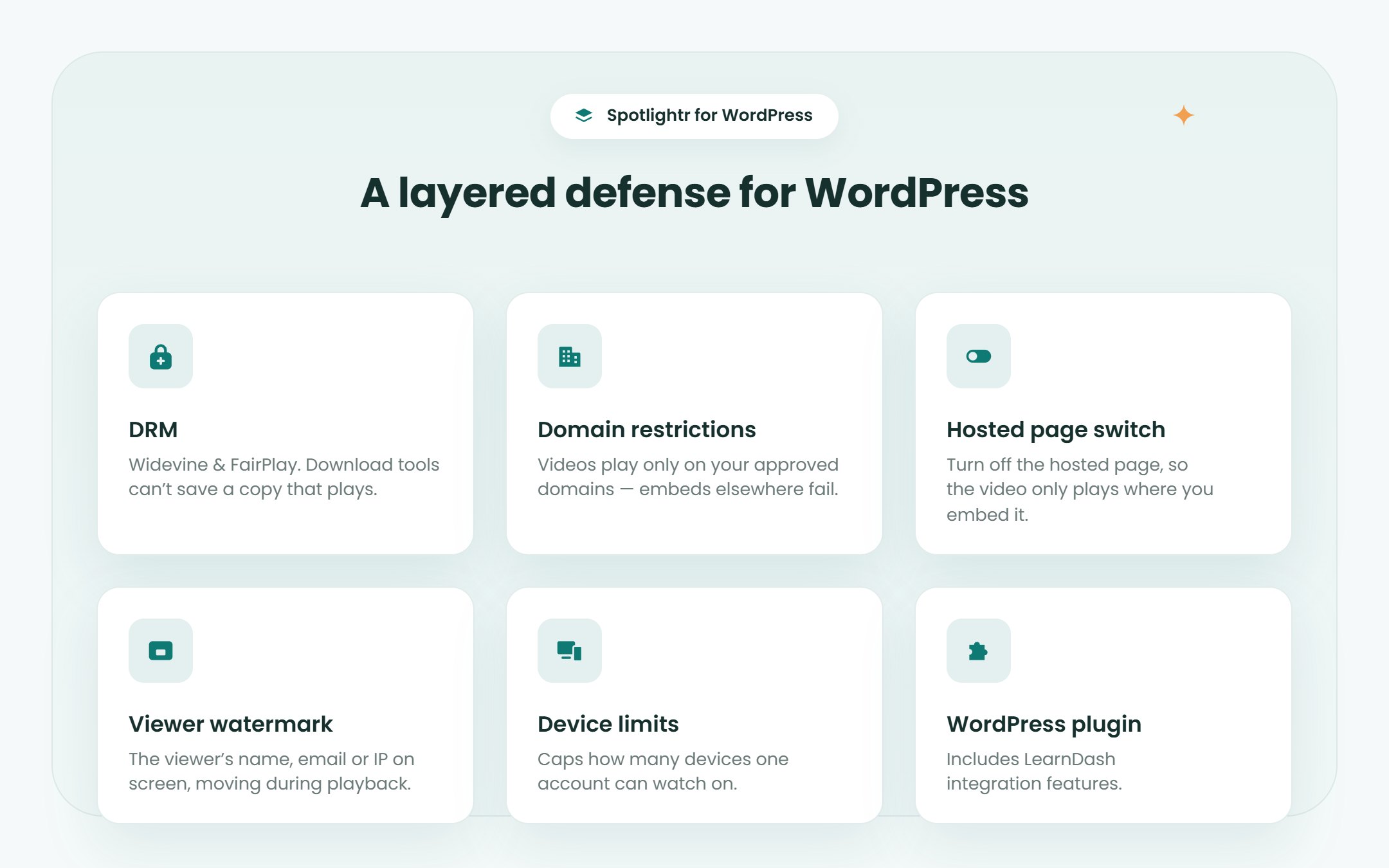
| Feature | What It Does |
|---|---|
| DRM | Download tools can’t save a copy that plays. DRM protects playback wherever the device supports it; Force DRM blocks playback everywhere else |
| Domain restrictions | Videos play only on your approved domains – embedding elsewhere fails |
| Hosted page switch | Turns off the Spotlightr-hosted page, so the video plays only where you embed it |
| Viewer watermark | Overlays viewer-specific data (email, IP) on playback in real time |
| Device limits | Caps how many devices one account can watch on |
| WordPress plugin | Includes LearnDash integration features, and the embed code works in any other LMS or membership plugin |
Specialized video hosting platforms offer advanced protection features that go far beyond hiding a download button, and unauthorized playback or embed attempts can trigger an error message when those restrictions are violated. Spotlightr’s player has no download option, and right-click is turned off. With Force DRM on, download extensions can’t save a copy that plays.
Even with DRM, screen recording remains theoretically possible. But Spotlightr dramatically raises the effort required to pirate an entire course, making it impractical for all but the most determined users.
Step‑by‑Step: Embedding Protected Spotlightr Videos in WordPress
Getting protected video embedded on your WordPress site takes just a few steps:
1 – Upload to Spotlightr, not WordPress. Upload your video content to your Spotlightr account. Never upload the source file to your WordPress media library.
2 – Enable security settings. In the Spotlightr dashboard, turn on “Force DRM”, set domain restrictions to your website URL, and configure watermark overlays if interested.
3 – Set link expiry and access rules. Optionally disable the Hosted Page so only embedded versions play.
4 – Copy the embed code. Grab the iframe or script embed snippet from Spotlightr.
5 – Paste into WordPress. Use the Custom HTML block in Gutenberg, a classic editor HTML view, or a page builder widget. If your LMS plugin has a video block, use that for tighter integration.
6 – Verify the page source. Once embedded, there is no direct MP4 link in the page source for simple download tools to grab, and DRM stops the tools that capture the stream from saving a copy that plays.
Optionally, display a short banner or note under the player explaining that video access is restricted to registered, paying users. This sets expectations and can reduce support requests.
Going Further: Memberships, Access Rules, and Comments Section Moderation
Preventing video download is only one layer. You also need to control who can reach the page where the video is embedded.
– Pair Spotlightr with an LMS or membership plugin like LearnDash, Tutor LMS, or LifterLMS. WordPress plugins can restrict access to video files based on user roles, ensuring only paying students see lesson content.
– Limit simultaneous logins. If one account is streaming from five IP addresses at once, that is password sharing. Some membership plugins let you subscribe to activity alerts for this.
– Use expiring private links. Access control plugins can generate private links that expire over time, adding another barrier for anyone trying to share a direct URL.
– Moderate the comments section. Users sometimes post download links or mirror URLs in the community discussion under lessons. Edit or remove these quickly, and watch for new replies that contain suspicious URLs.
– State your terms. Add a clear notice on checkout pages and in the course intro: downloading or redistributing video content is prohibited. This matters both legally and psychologically.
Why You Still Need to Think About Screen Recording
Even with DRM, you cannot technically block a user from using screen recording apps or pointing a mobile phone camera at the monitor. No save-proof format exists.
Practical deterrents work, though:
– A viewer watermark discourages piracy by displaying viewer information on videos – such as their name or email address.
– Moving the watermark around the screen can deter unauthorized sharing of video content because any leaked recording is immediately traceable.
– Watermarking videos can deter content theft by making the pirated copy less valuable for redistribution.
– Adding unique identifiers helps claim ownership of videos if they do appear on pirate sites.
Spotlightr’s viewer watermark shows the viewer’s name, email or IP address and moves during playback. It’s off until you switch it on. Combine it with viewing restrictions and you have a setup where recorded copies point straight back to the offending account.
Also monitor for unusual behavior: a single user account binge-watching an entire library from multiple IP addresses in a short timeframe is a red flag worth investigating. The goal is risk reduction – make copying inconvenient enough that the majority of users respect the rules.
Developer Tips: Extra Hardening for Embedded Video Players
These measures are optional and intended for developers or advanced users looking to lock things down further.
– Disable right click on lesson pages. A small jQuery or vanilla JavaScript snippet can suppress the context menu, reducing obvious “Save video as…” attempts. Plugins can disable right-click functionality on videos to block downloads, though savvy users can bypass this with keyboard shortcuts or DevTools.
– Block hotlinking at the server level. Configure .htaccess (Apache) or NGINX rules to reject requests for your uploads folder unless the referer matches your domain. Direct access to video folders can be blocked via server configuration to prevent external sites from loading your files.
– Serve residual files via signed URLs. If any self-hosted video files remain, use WordPress security plugins or custom code to restrict access to /wp-content/uploads/ and serve those files through expiring, signed URLs only. This is also useful if you have a YouTube or other external embed that you are switching to a secure host.
– Keep everything updated. Run the latest version of your plugins, themes, and WordPress core. An outdated plugin is a security hole regardless of your video protection strategy. Don’t forget to review your configuration after every major WordPress or browser update.
With Spotlightr handling the heavy lifting for your premium content, these hardening steps mainly serve to protect any residual assets and keep the overall environment locked down.
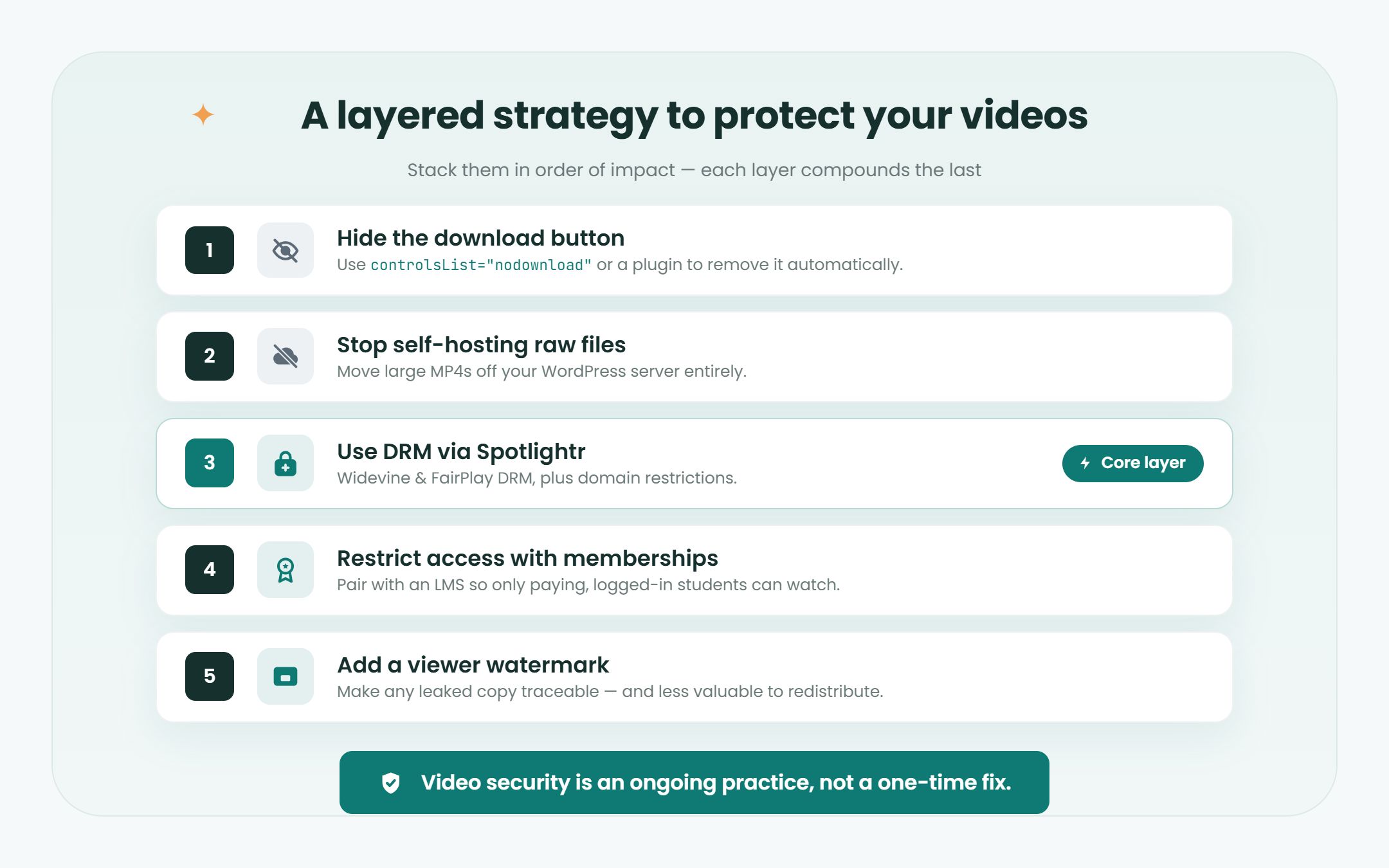
Summary: A Layered Strategy to Protect Videos in WordPress
When it comes to WordPress video hosting, securing video content requires a multi-layered approach. You cannot totally block video downloads, but you can remove easy options, protect delivery with DRM, and control who gets access.
Here is the stack in order of impact:
1 – Hide the browser download button using controlsList=”nodownload” or a plugin that does it automatically.
2 – Stop self-hosting raw video files. Move them off your WordPress server entirely.
3 – Use DRM via Spotlightr. DRM (Widevine and FairPlay) stops download tools from saving a copy that plays, and domain restriction stops your embed code playing anywhere else.
4 – Restrict access with memberships. Pair Spotlightr with an LMS or membership plugin so only paying, logged-in students can watch.
5 – Add a viewer watermark. Make any leaked copy traceable and less valuable.
Start by auditing your current WordPress site: find any public MP4 URLs, replace them with protected Spotlightr embeds, and tighten your login and sharing policies.
Browsers, WordPress, and piracy tools all evolve constantly. Make it a habit to review your protection settings regularly through 2026 and beyond. The creators who treat video security as an ongoing practice – not a one-time fix – are the ones who protect their revenue long-term.
Frequently Asked Questions
Can you stop people downloading videos from a WordPress site?
You can stop downloading, but not screen recording. Don’t upload videos to the WordPress media library. Host them on a video platform that streams them with no download option, restrict playback to your domain, and use DRM so download tools can’t save a copy that plays. A viewer watermark makes any screen recording traceable.
Does controlsList=”nodownload” stop video downloads in WordPress?
No. It hides the download button in Chrome’s video player, but the video file’s URL is still in the page source, and download tools don’t need the button. It’s a quick first step, not protection.
Is it safe to host videos in the WordPress media library?
Not for paid content. Files in the media library are plain MP4s with a public URL, so anyone who finds the link can save the file or share it. Large video files also slow your site down.
Can I use DRM with LearnDash?
Yes. Host the video on Spotlightr and embed it in your LearnDash lesson. Spotlightr’s WordPress plugin includes LearnDash integration features. DRM protects playback wherever the device supports it; Force DRM blocks playback everywhere else.
Can students still screen record my lessons?
Yes, on any platform. A viewer watermark that shows the student’s name, email or IP address means a leaked recording can be traced back to them.
Secure Your Videos On WordPress With Spotlightr
Register for a free 2 week trial, no credit card required.

Bill is the founder of Spotlightr, a video platform used by course creators, membership sites and marketers who need their video hosted properly rather than uploaded somewhere and hoped for. He writes about instructional video from the inside — what creators actually publish, where students actually stop watching, and what the platforms in this category actually charge. He’s currently building Spotlightr Courses, a course product built around the video rather than bolted on top of it.